
Reviews let your team check test cases before they are used. A test case moves from Draft to In review, and a reviewer either approves it, which makes it Active, or rejects it with feedback. This way, you always know who changed a test case, who approved it, and which version your testers will see.
In this article, you'll learn how to enable reviews, how to request and perform reviews, and how to approve and reject test cases.
How Test Case Reviews Work
Every test case has a state. Without reviews, a test case is either Draft or Active. When you enable reviews, two more states become available:
- Draft: Still being written, not ready for use.
- In review: Submitted and awaiting review.
- Active: Ready to use. Only Active test cases can be planned in a test run.
- Rejected: Changes are needed before activation.
A typical review cycle looks like this:
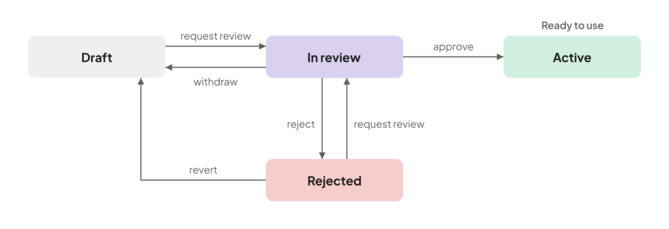
- The author writes or updates a test case. It is in Draft.
- The author requests a review and assigns one or more reviewers. The test case moves to In review.
- The reviewer compares the changes with the currently active version and either approves the test case, which makes it Active, or rejects it with a message, which moves it to Rejected.
- After a rejection, the author updates the test case and requests a review again.
Test cases that are already planned in a test run stay in that run, even if they move back to Draft or are rejected. Testers can still run them, using the version that was planned.
Reviews don't apply to automated test cases. They are always Active.
Approving and rejecting test cases requires the Review test cases permission. By default, only the Project Manager role has this permission. You can add it to other roles in Roles and Permissions.
When reviews are enabled, these permissions apply:
- Manage project: enable reviews and change the review settings.
- Update test cases: request a review and set a test case to Draft.
- Review test cases: approve, reject and set a test case to Active, and open the Review tab.
Only users with the Review test cases permission in the project can be assigned as reviewers. If you select someone without it, you'll see the message "[Name] can't perform reviews in this project."
Enable Reviews
Reviews are enabled per project. You need the Manage project permission to change this setting.
- Open the project settings and click Reviews under General.
- Toggle the Enable reviews switch. The setting is saved automatically.
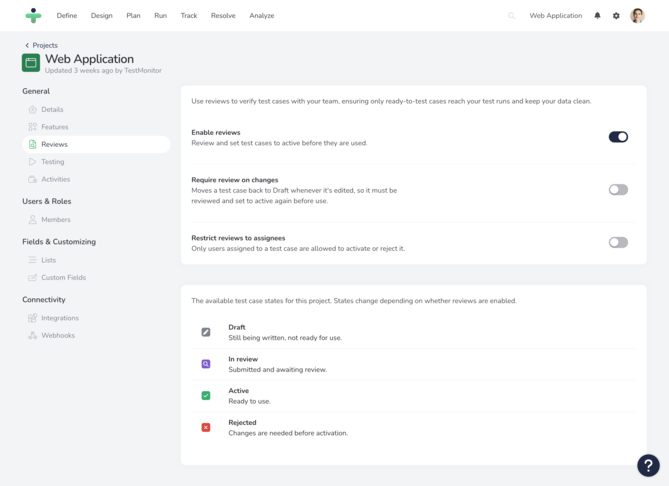
Enabling reviews does not change your existing test cases. Active test cases stay Active and remain available for test runs, and Draft test cases stay Draft. Nothing is sent for review automatically.
You can also enable reviews in the Reviews step when creating a new project.
Configuring Reviews
Two extra settings on the Reviews settings page give you more control over the review workflow:
-
Require Review on Changes: When you enable this setting, a test case moves back to Draft whenever it is edited, so it must be reviewed and set to active again before use. New test cases always start as Draft.
This lets testers and other team members suggest changes without affecting your test runs. Until the changes are approved, new test runs keep using the last approved version.
Changing tags, adding or removing attachments, moving a test case to another folder, reordering, assigning users and commenting do not affect the state of a test case. - Restrict Reviews to Assignees: When you enable this setting, only users assigned to a test case can approve or reject it. Anyone with the Review test cases permission can still be assigned, but only the assigned reviewers can complete the review.
With this setting, selecting at least one assignee is required when you request a review or reject a test case.
These settings are available on the Professional and Enterprise plans. If your subscription changes to a plan without them, they are switched off in every project, while reviews themselves stay enabled.
Manage Reviews
When reviews are enabled, the test case list gets a new Review tab. It lists the test cases in your project by state, so you can see at a glance what is waiting for review and act on it right away.
To open it, click Design in the navigation menu, and then switch from Folders to Review at the top of the folder tree.
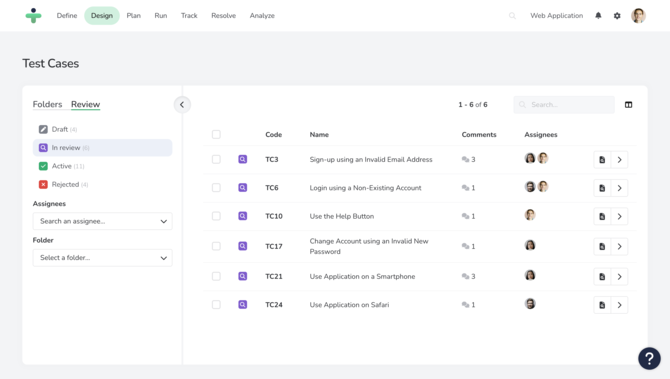
Use the filters on the left to find the test cases you need:
- State: Shows the number of test cases in each state. In review is selected when you open the tab.
- Assignees: Select one or more reviewers, or Unassigned.
- Folder: Limit the list to a single folder.
Each row offers the actions that fit the state of the test case:
- Draft: Review... opens the changes, where you can request a review or set the test case to Active.
- In review: Review changes... opens the changes, where you can approve or reject the test case.
- Active: Set to Draft takes the test case out of use.
- Rejected: Review... lets you request a new review, and Set to Draft moves it back to Draft.
To act on several test cases at once, check the box to the left of each test case and use the buttons in the toolbar. The available bulk actions depend on the state you selected.
Request a Review
You can request a review for a test case in Draft or Rejected. You need the Update test cases permission.
- Open the Review tab and select the Draft or Rejected state.
- Click Review... in the row of the test case. The Review Changes popup shows what changed compared to the active version.
- Click Request review.... A popup will appear.
- Select one or more Assignees. These are the reviewers who will be notified.
- Optionally, enter a Message for the reviewers, for example what changed and why.
- Click Request to confirm.
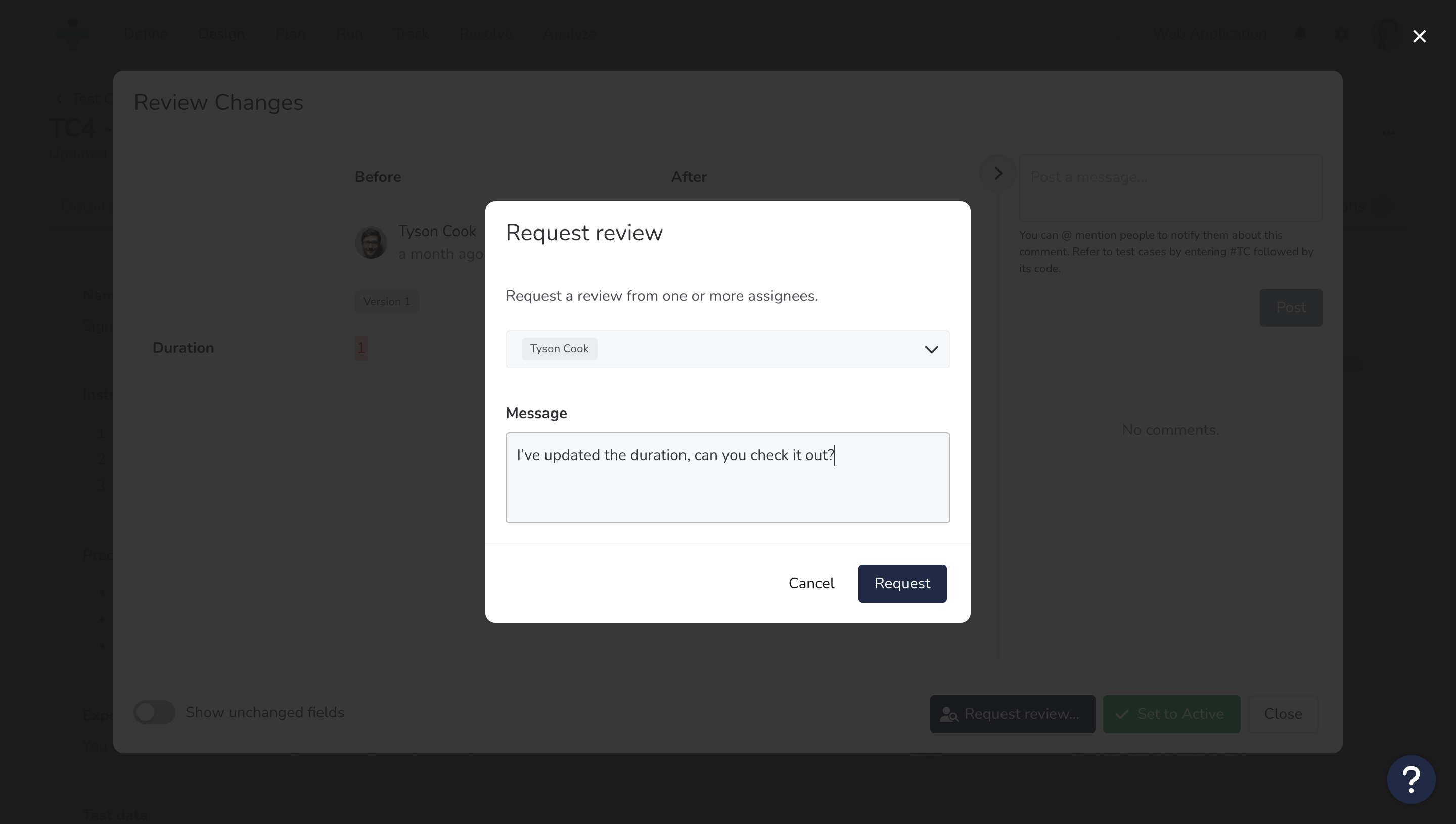
The test case moves to In review. Your message is added to the test case comments, starting with "Review requested:".
To request a review for multiple test cases at once, check the box to the left of each test case, click the Request review... button in the toolbar, and follow steps 4 to 6.
You can also request a review from the test case detail page. Click the state dropdown in the top right corner, select Request review..., and follow steps 4 to 6
You can assign multiple reviewers. One approval is enough to make the test case Active.
Review a Test Case
Reviewers do most of their work on the Review tab. Select the In review state to see the test cases that are waiting for you.
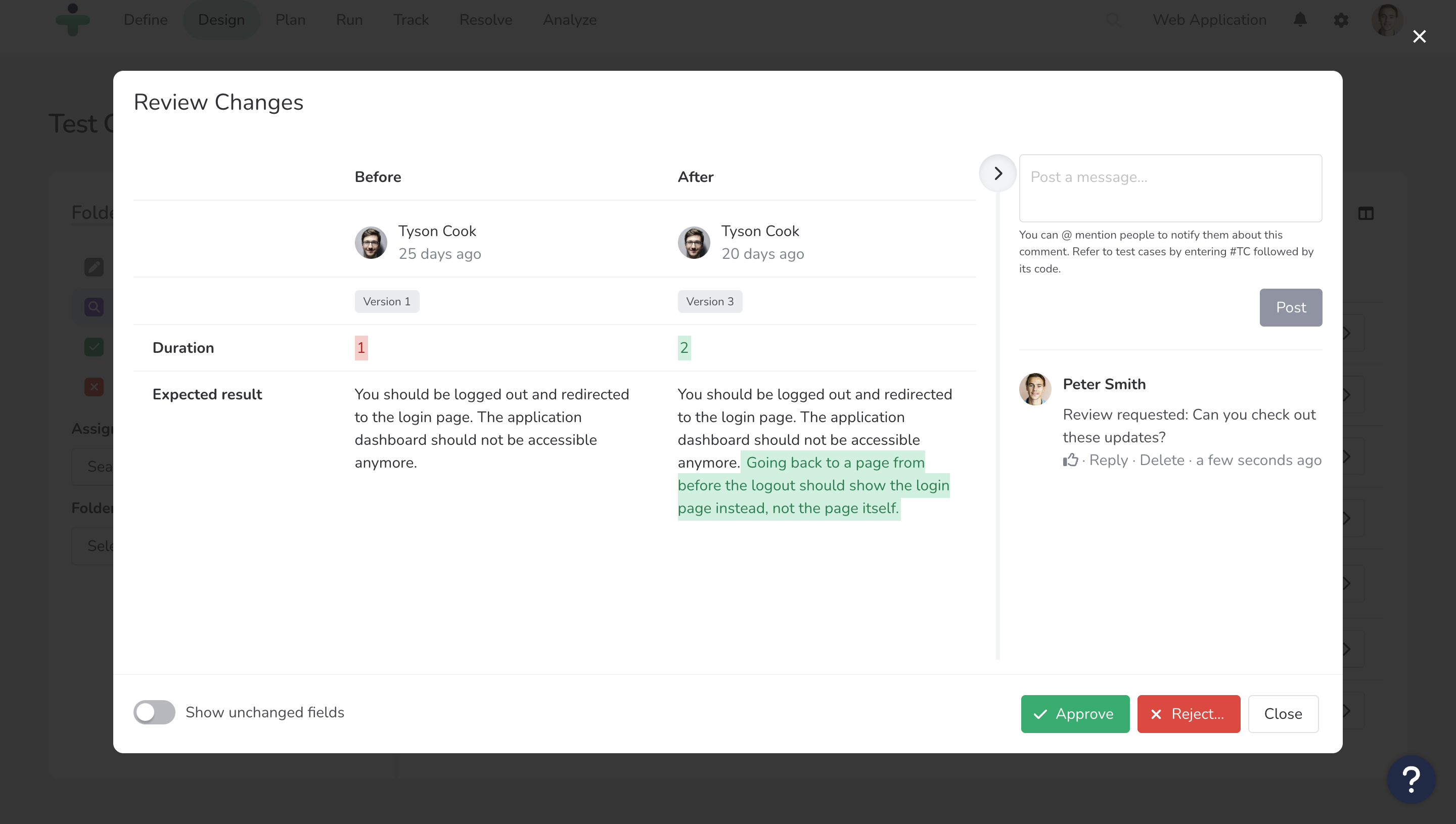
Click Review changes... in the row of a test case that is In review. The Review Changes popup compares the latest version of the test case with the version that is currently active:
- Before: The active version, with its author, time and version number.
- After: The proposed changes, with their author, time and version number.
- Show unchanged fields: Toggle this switch to see the complete test case.
- Comments: Read the review request message or discuss the changes.
Approve a Test Case
Click Approve in the Review Changes popup. The test case becomes Active, and its latest version is now the one used in new test runs. The author is notified of the approval.
Reject a Test Case
- Click Reject... in the Review Changes popup. A popup will appear.
- Enter a Message explaining what needs to change. A message is required.
- Optionally, select the Assignees for the next step, for example the original author.
- Click Reject to confirm.
The test case moves to Rejected. Your message is added to the test case comments and the author is notified.
Process a Rejected Test Case
When a test case is rejected, the author receives a notification with the reviewer's message. You can also find the message in the test case comments.
- Open the test case and update it based on the feedback.
- On the Review tab, select the Rejected state and click Review... in the row of the test case.
- Click Request review... and follow the steps in Request a Review.
You don't have to set the test case to Draft first. If you want to keep working on it before you submit it again, click Set to Draft in its row instead.
Disable Reviews
To stop using reviews in a project:
- Open the project settings and click Reviews under General.
- Toggle the Enable reviews switch off. A confirmation dialog will appear.
- Confirm that you want to disable reviews.
The In review and Rejected states are no longer available, and Require review on changes and Restrict reviews to assignees are switched off as well. Active and Draft test cases are not changed.
Test cases that are In review or Rejected move back to Draft. This cannot be undone. In large projects, it may take a moment before all test cases are updated.