
A revision is a snapshot of a test case at a specific point in time. TestMonitor creates revisions automatically whenever a test case changes, so you always have a complete history. You can compare versions, roll back to an earlier one, and decide when a test run should pick up the latest changes.
This article explains why revisions matter, what creates a revision, how to view and compare revisions, how to roll back, and how test runs use revisions.
Why Revisions Matter
Revisions are more than a history log. They make sure you always know which version of a test case was planned and tested:
- Test runs: A test run uses a fixed version of each test case. You can keep improving your test cases while testing is in progress, without changing what testers see halfway through a run.
- Test results: Every test result is linked to the version that was tested. Even when a test case changes later, you can still see the exact instructions and expected result the tester worked with.
- Reports and exports: The test result export shows the name, preconditions, test data and expected result of the version that was actually tested, so your results remain reliable evidence.
- Reviews: When reviews are enabled, only approved versions reach your test runs. Read more in Review Test Cases.
You decide when a test run moves to a newer version. See Revisions in Test Runs.
What Creates a Revision
Every test case starts with an initial revision when it is created. After that, a new revision is created when you change any of these:
- Content: name, duration, preconditions, test data, expected result or instructions.
- Tags and custom fields: any change to tags or custom field values.
- Relations: linking or unlinking requirements, risks or applications.
Changing the state of a test case (for example approving it or setting it to Draft), moving it to another folder, reordering, attachments, assignees and comments do not create a revision.
To keep the history readable, repeated saves of a Draft test case by the same person within one hour are combined into a single revision.
View Revisions
Open a test case detail page and select the Revisions tab. Every version is listed with its version number, author and date.
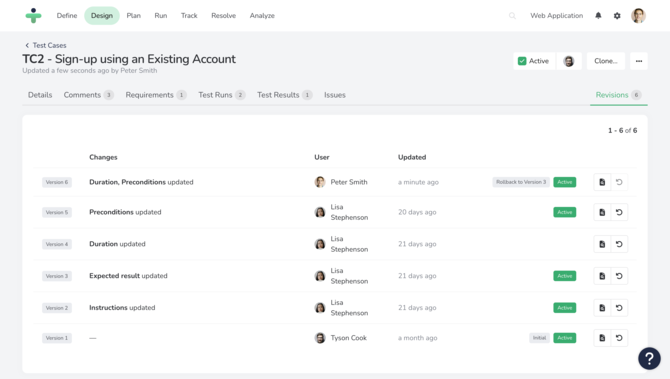
Tags help you identify specific versions:
- Initial: The first version of the test case.
- Active: A version that was available for test runs. The newest active version is the one used when planning a test run.
- Rollback to Version N: A version created by rolling back.
Compare Versions
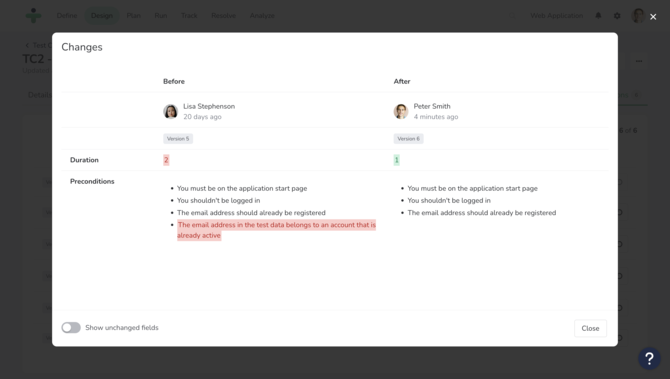
Click View changes next to a revision to see what changed compared to the previous version, field by field. Toggle the Show unchanged fields switch to see the complete test case.
Roll Back to an Earlier Revision
If a change didn't work out, you can restore an earlier version. You need the Update test cases permission.
- Open the Revisions tab of the test case.
- Click Rollback next to the version you want to restore. A confirmation dialog appears.
- Confirm the rollback.
Rolling back never removes history. TestMonitor restores the fields from the selected version and saves them as a new revision, tagged Rollback to Version N.
What happens next depends on the state of the test case:
- Active: The restored version becomes the active version right away.
- Draft: The test case stays Draft.
- Reviews with Require review on changes: The test case moves to Draft and must be approved again.
Revisions in Test Runs
When you plan a test case in a test run, the run uses the latest active version of the test case. Testers see exactly that version, and their results are linked to it. Later changes to the test case don't affect the run until you choose to upgrade.
When a newer active version is available, the Test cases tab of the test run shows an upgrade button with the new version number, for example Version 6. Click it to switch the test run to the latest version of that test case. Existing test results are not changed.
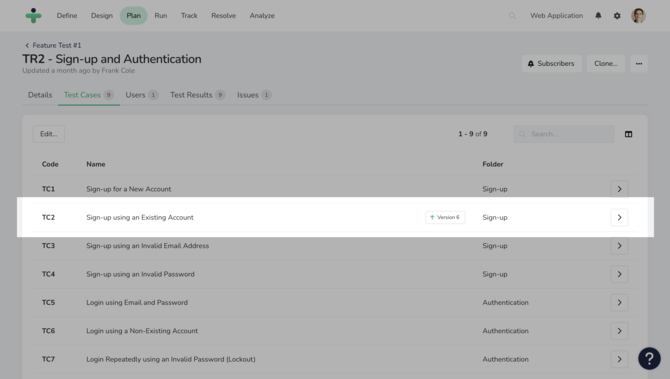
When you clone or rerun a test run, the new run uses the same versions as the original. Use the upgrade button to move to newer versions.
Revisions and Reviews
When reviews are enabled, approving a test case makes its latest revision the active version. With Require review on changes, edits stay out of your test runs until they are approved. Read more in Review Test Cases.
When you clone a test case, only its latest revision is copied. The clone starts with a new initial revision and no history, and new test runs will use that version.